CAD Design and Drafting Services

In today’s fast-paced engineering and design environment, having precise and efficient CAD (Computer-Aided Design) design and drafting services is crucial for businesses across industries. From mechanical engineering and civil works to electrical systems and architectural projects, CAD design simplifies the creation of accurate, detailed, and professional drawings. However, finding a reliable CAD Design and Drafting Services in Australia can be challenging, especially with multiple providers offering varied expertise. To help you make an informed decision, we’ve compiled essential tips for choosing the right service provider.

1. Evaluate Experience and Expertise

One of the first things to consider is the experience of the CAD service provider. Look for companies with a proven track record in handling projects similar to yours. A service provider with expertise in multiple industries, such as mechanical, electrical, civil, or architectural, can adapt to your project requirements more efficiently. Experienced CAD designers understand industry standards and can provide solutions that reduce errors, save time, and improve project outcomes.

2. Check for Software Proficiency

CAD design relies heavily on software tools like AutoCAD, SolidWorks, Revit, CATIA, and Inventor. A reliable provider should have a team proficient in the latest CAD software to deliver accurate drawings and 3D models. Ask about the software they use, and ensure they can handle your project’s specific requirements. For instance, architectural projects may require Revit for Building Information Modeling (BIM), whereas mechanical components might need SolidWorks or CATIA.

3. Review Portfolio and Past Work

A credible CAD service provider will have a portfolio showcasing past projects. Reviewing their previous work allows you to assess the quality of their designs, attention to detail, and capability to handle complex projects. Look for projects that resemble your own in scale, industry, and complexity. This evaluation can help you determine whether the provider aligns with your expectations.

4. Assess Communication and Collaboration

Effective communication is key to ensuring that your vision translates into accurate CAD drawings. Choose a provider who maintains transparent communication throughout the project. They should be open to discussions, updates, and feedback, and ideally, offer project management tools or regular reporting. Collaboration is especially important for projects that require coordination between multiple teams, such as engineers, architects, and contractors.

5. Consider Turnaround Time and Reliability

Timely delivery is critical in the competitive Australian market. Reliable CAD design and drafting services understand the importance of deadlines and provide realistic timelines. Ask potential providers about their workflow, project milestones, and ability to handle urgent requests. A trustworthy provider will manage workloads efficiently and maintain consistent quality even under tight schedules.

6. Evaluate Cost vs. Quality

While affordability is important, it should never compromise quality. Beware of extremely low-cost providers, as they may lack the expertise or technology needed for accurate CAD drawings. Instead, focus on getting value for money. Reliable CAD service providers offer competitive pricing while maintaining high standards of precision, accuracy, and compliance with industry norms.

7. Verify Compliance with Industry Standards

CAD drawings must adhere to local and international engineering and drafting standards. Ensure that your chosen service provider follows Australian standards (AS), ISO norms, or other relevant regulations. Compliance guarantees that your drawings are professional, safe, and legally acceptable for construction, manufacturing, or approval processes.

8. Explore Post-Delivery Support

Some projects require revisions, updates, or additional technical support after initial delivery. Check if the provider offers post-delivery assistance, such as modifications to drawings, troubleshooting, or consulting. Reliable CAD services often maintain long-term relationships with clients, ensuring ongoing support and guidance.

9. Check Client Testimonials and Reviews

Reviews and testimonials from past clients can provide valuable insights into a provider’s reliability, professionalism, and service quality. Look for feedback on project handling, communication, accuracy, and adherence to deadlines. Positive testimonials often indicate a provider’s ability to meet client expectations consistently.

10. Opt for a Provider Offering Multiple Services

Choosing a CAD service provider with a diverse portfolio of services can be beneficial. Providers offering both design and drafting services can ensure seamless integration from concept to final production. Some services may include 2D drafting, 3D modeling, reverse engineering, product design, architectural drafting, and more. A one-stop solution reduces coordination challenges and improves efficiency.

Conclusion

Choosing the right CAD Design and Drafting Services in Australia is crucial for the success of your engineering, architectural, or manufacturing projects. By evaluating experience, software proficiency, portfolio, communication, reliability, compliance, and post-delivery support, you can ensure your project is executed accurately and efficiently. Taking the time to research and select a trustworthy provider not only saves time and money but also guarantees high-quality results that meet industry standards.

Invest wisely in a CAD service provider, and your projects will benefit from precision, professionalism, and smooth workflow from concept to completion.

What industries use CAD Design and Drafting Services in Australia?

CAD design services are widely used across mechanical, electrical, civil, architectural, aerospace, automotive, and manufacturing industries throughout Australia. At ASTCAD, we help businesses create accurate drawings, 3D models, and prototypes for production, construction, and design validation. Whether you’re working on infrastructure projects, product development, or building designs, our CAD drafting expertise supports Australian engineers and architects in delivering compliant, professional solutions.

How do I know if a CAD service provider is reliable?

When choosing a CAD service provider, we recommend looking for extensive experience with Australian building codes and standards like the National Construction Code and relevant state regulations. Check their portfolio for similar projects, read client testimonials, and confirm they’re proficient in current software and maintain transparent communication throughout the project. At ASTCAD, we pride ourselves on delivering reliable drafting services backed by industry expertise and a commitment to quality standards that Australian engineers and builders expect.

Can CAD services help with 3D printing and prototyping?

Yes, many CAD service providers in Australia specialize in creating 3D models suitable for prototyping and additive manufacturing. They can optimize designs for 3D printing, CNC machining, or other manufacturing processes.

What is the typical turnaround time for CAD projects?

At ASTCAD, we understand that turnaround time is crucial for your project timeline. Our typical delivery ranges from 2-3 days for straightforward 2D drafting to 2-4 weeks for complex 3D modeling and architectural designs, depending on project scope and revisions. We always provide detailed timelines upfront and comply with Australian building codes and standards, ensuring no delays due to compliance issues. Rush services are available for urgent projects, and we maintain open communication throughout each phase to keep you informed.

Is it cost-effective to outsource CAD design services in Australia?

Outsourcing CAD services can be highly cost-effective, as it saves on hiring in-house staff, training, and software licenses. Additionally, it provides access to specialized expertise and faster project delivery.
JH

James Hartley

Senior Mechanical Engineer · BEng (Mechanical), UQ · Member, Engineers Australia · ASTCAD, Brisbane

James has 14 years of hands-on experience delivering CAD design, structural drafting, and engineering documentation across Australia’s mining, oil & gas, and manufacturing sectors. He specialises in SolidWorks, Autodesk Inventor, and AutoCAD for complex multi-discipline projects.

More articles by James Hartley →
AutoCAD

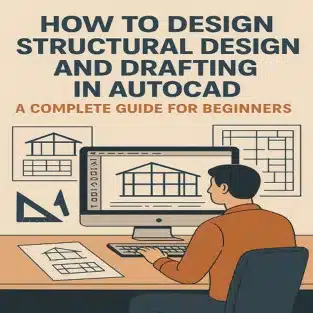
Structural design and drafting are the backbone of any construction or engineering project. With the rise of digital tools, AutoCAD has become one of the most powerful and widely used software platforms for creating precise 2D and 3D structural drawings. Whether you are an aspiring civil engineer, architect, or draftsman, learning Structural Design and Drafting in AutoCAD will open countless career opportunities and help you work efficiently on real-world projects.

In this complete guide, we’ll walk you through the basics of structural drafting in AutoCAD, key tools, best practices, and FAQs to help beginners get started.


What is Structural Design and Drafting in AutoCAD?

Structural design involves planning, analyzing, and designing the load-bearing framework of a building, bridge, or any structure. Drafting, on the other hand, is the process of creating detailed technical drawings that communicate the design intent to builders, engineers, and contractors.

AutoCAD allows engineers and draftsmen to create precise and scalable structural drawings digitally. It replaces manual paper drawings, saving time and reducing errors while providing flexibility for modifications and collaboration.


Why Use AutoCAD for Structural Design and Drafting?

  1. Accuracy and Precision – AutoCAD ensures millimeter-level accuracy in structural drawings.
  2. 2D & 3D Modeling – It offers both 2D drafting and 3D modeling for a complete design experience.
  3. Standardization – AutoCAD supports industry standards, symbols, and templates.
  4. Easy Editing – Unlike manual drawings, changes can be made quickly and efficiently.
  5. Compatibility – AutoCAD drawings can be shared in multiple formats (DWG, DXF, PDF) for collaboration.

Getting Started with Structural Drafting in AutoCAD

If you are a beginner, follow these essential steps to start creating structural drawings in AutoCAD:

1. Learn the Basics of AutoCAD Interface

  • Explore the ribbon menu, command line, and drawing workspace.
  • Familiarize yourself with layers, object snaps, and coordinate systems.

2. Understand Structural Drafting Standards

  • Learn common structural symbols (beams, columns, foundations, reinforcements).
  • Follow BIS, AISC, or regional drafting standards.

3. Create the Structural Grid

  • The grid forms the base of any structural drawing.
  • Use LINE and OFFSET commands to set up grids.

4. Draft Structural Elements

  • Columns – Draw using rectangles or polylines.
  • Beams – Use lines or polylines aligned with the grid.
  • Footings & Foundations – Represent with rectangles and hatch patterns.
  • Slabs & Reinforcement – Use hatches and layers for clarity.

5. Use Layers Effectively

  • Assign beams, columns, slabs, and dimensions to separate layers.
  • Helps in organizing and editing the drawing.

6. Add Dimensions and Annotations

  • Use the DIMLINEAR and TEXT commands for clarity.
  • Ensure all drawings are readable with proper scale.

7. Create 3D Structural Models (Optional)

  • AutoCAD’s 3D tools can be used to visualize the structure.
  • Commands like EXTRUDE and REVOLVE help in creating 3D models.

8. Finalize and Export Drawings

  • Double-check alignment, dimensions, and standards.
  • Export in PDF/DWG format for engineers and contractors.

Best Practices for Beginners

  • Always start with proper units and scales.
  • Use blocks for repetitive elements like column sections.
  • Keep drawings clean and organized with layers.
  • Save your work frequently to avoid data loss.
  • Learn keyboard shortcuts to speed up drafting.

Benefits of Learning Structural Design and Drafting in AutoCAD

  • Enhances employability in civil engineering, architecture, and construction industries.
  • Saves time compared to manual drafting.
  • Helps in creating error-free, professional drawings.
  • Builds a strong foundation for learning advanced software like Revit or STAAD Pro.

Final Thoughts

Learning Structural Design and Drafting in AutoCAD is a rewarding skill that empowers beginners to create accurate, professional, and standardized drawings for construction projects. By mastering the basics—grids, columns, beams, dimensions, and annotations—you can progress toward advanced modeling and even BIM applications.

AutoCAD remains one of the most in-demand tools in engineering and construction, making it a valuable career asset. Whether you are a student, fresher, or professional, this guide gives you a roadmap to start your journey in structural drafting.

What is structural design and drafting in AutoCAD?

Structural design and drafting in AutoCAD involves creating detailed technical drawings of buildings, bridges, and infrastructure projects that comply with Australian Standards and Building Codes. Our experienced team uses AutoCAD to produce comprehensive plans, elevations, sections, and reinforcement details that help engineers, builders, and contractors accurately understand and execute the design. These drawings are essential for obtaining council approvals and ensuring your project meets National Construction Code requirements.

Why is AutoCAD important for structural drafting?

AutoCAD is essential for structural drafting because it delivers the precision and accuracy required for Australian building codes and standards. We use AutoCAD to create detailed 2D and 3D drawings efficiently, make rapid design modifications, and seamlessly collaborate with engineers, architects, and contractors. The software allows our team to produce compliant construction documentation while meeting strict AS/NZS requirements, ultimately saving time and reducing costly errors on site.

Can beginners learn structural drafting in AutoCAD?

Yes, absolutely. We recommend beginners start with fundamental 2D drafting techniques, master layer organisation and dimensioning standards, then progress to structural detailing. Following Australian building codes and engineering practices, our clients successfully create professional structural drawings through consistent practice and our tailored tutorials.

What skills are needed to start structural design in AutoCAD?

To start structural design in AutoCAD with ASTCAD, you’ll need basic construction knowledge, understanding of structural elements like beams and columns, and AutoCAD command familiarity. We recommend learning Australian building codes and standards, particularly AS/NZS 1170 for loads and the National Construction Code. Our team suggests practicing with local project examples to understand how Australian specifications apply to your designs.

What types of structural drawings can be created in AutoCAD?

We can help you create a comprehensive range of structural drawings in AutoCAD, including foundation plans, column layouts, beam details, and reinforcement drawings that comply with Australian Standards. Our team specializes in steel structure details, concrete specifications, and detailed 3D structural models tailored to meet local building codes and engineering requirements. Whether you’re designing residential, commercial, or industrial projects, AutoCAD allows us to produce accurate, professionally detailed drawings ready for construction and council approval.


JH

James Hartley

Senior Mechanical Engineer · BEng (Mechanical), UQ · Member, Engineers Australia · ASTCAD, Brisbane

James has 14 years of hands-on experience delivering CAD design, structural drafting, and engineering documentation across Australia’s mining, oil & gas, and manufacturing sectors. He specialises in SolidWorks, Autodesk Inventor, and AutoCAD for complex multi-discipline projects.

More articles by James Hartley →
3D Mechanical Parts in AutoCAD

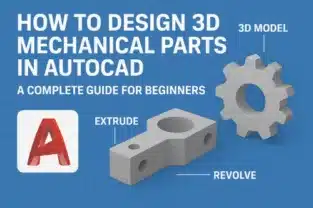
Designing 3D Mechanical Parts in AutoCAD is an essential skill for engineers, designers, and manufacturers who want to bring their ideas to life with precision and efficiency. AutoCAD, developed by Autodesk, is one of the most widely used CAD software applications for creating detailed mechanical drawings, models, and assemblies. Whether you’re designing machine components, tools, or industrial equipment, AutoCAD provides a robust platform to create accurate 3D models that streamline prototyping and manufacturing processes.

In this guide, we’ll walk through the basics of designing 3D Mechanical Parts in AutoCAD, share practical tips, and answer some frequently asked questions.


Why Use AutoCAD for 3D Mechanical Parts?

AutoCAD is not just for 2D drafting—it’s a powerful tool for 3D modeling as well. Here’s why it’s ideal for mechanical part design:

  • Precision and Accuracy: AutoCAD allows you to create models down to the finest detail, ensuring every hole, slot, and dimension aligns perfectly.
  • Compatibility: Files can be exported in various formats (e.g., .STL, .STEP, .IGES), making it easy to integrate with 3D printers, CNC machines, and other CAD/CAM software.
  • Visualization: 3D models provide a realistic preview of mechanical parts, helping to detect design flaws before production.
  • Efficiency: The parametric and feature-based design tools allow for quick modifications, saving time in the design iteration process.

Steps to Design 3D Mechanical Parts in AutoCAD

1. Start with a Concept

Before diving into AutoCAD, have a clear idea of the part you want to design. Gather sketches, technical requirements, and measurements. This will help guide your 3D modeling process.

2. Set Up the AutoCAD Workspace

  • Switch to a 3D Modeling workspace by going to the workspace settings in AutoCAD.
  • Familiarize yourself with the 3D tools panel: Extrude, Revolve, Sweep, Loft, and Boolean operations (Union, Subtract, Intersect).

3. Create a 2D Sketch

Every 3D model starts with a 2D sketch:

  • Use commands like LINE, CIRCLE, RECTANGLE, and POLYLINE to draw the base profile of your part.
  • Ensure that dimensions are accurate using the DIMENSION tool.

4. Convert 2D Sketches into 3D Models

  • EXTRUDE: Turn a closed 2D profile into a 3D solid by pulling it along the Z-axis.
  • REVOLVE: Rotate a 2D sketch around an axis to create cylindrical or spherical parts (useful for gears, pulleys, or shafts).
  • SWEEP and LOFT: Create complex parts by sweeping a profile along a path or lofting between multiple shapes.

5. Modify 3D Models

Once you’ve created the basic shape, refine it with modification tools:

  • FILLET and CHAMFER: Add smooth edges or beveled corners.
  • SHELL: Hollow out parts to reduce weight.
  • BOOLEAN operations: Combine or subtract solids to create complex designs.

6. Add Details

Mechanical parts often require features like holes, threads, or slots. Use the following:

  • HOLE or CYLINDER tool for drilled holes.
  • ARRAY tool to create repetitive features like bolt patterns.
  • PRESSPULL tool to cut shapes into surfaces.

7. Apply Materials and Rendering

Assign materials (metal, plastic, etc.) to your part for realistic visualization. AutoCAD’s rendering tools help you see how your design will look in real-world conditions.

8. Check and Export Your Design

  • Use MEASURE tools to verify dimensions.
  • Export in formats like .STL for 3D printing or .STEP/IGES for manufacturing.

Best Practices for Designing 3D Mechanical Parts in AutoCAD

  • Start Simple: Break down complex parts into smaller, simpler shapes before combining them.
  • Use Constraints: Apply geometric and dimensional constraints to maintain design accuracy.
  • Organize with Layers: Assign different parts or features to layers for easier editing.
  • Regularly Save Versions: Keep backups as you progress to avoid losing work.
  • Simulate Movements: If designing assemblies, test how parts move and fit together.

Common Applications of 3D Mechanical Parts in AutoCAD

  • Automotive components (gears, engine parts)
  • Industrial machinery and equipment
  • Aerospace components
  • Consumer products (electronics housings, tools, etc.)
  • Prototypes for 3D printing and CNC machining

Final Thoughts

Designing 3D Mechanical Parts in AutoCAD allows engineers and designers to create highly accurate and functional models that bridge the gap between concept and reality. By mastering the core 3D tools, understanding best practices, and practicing regularly, you can unlock AutoCAD’s full potential in mechanical design.

Whether you are a beginner or a professional, AutoCAD equips you with the tools to design, visualize, and prepare your mechanical parts for real-world applications.

Can beginners design 3D Mechanical Parts in AutoCAD?

Yes! AutoCAD is beginner-friendly, and with practice, you can quickly learn to design simple parts before progressing to more complex mechanical assemblies.

What file format should I use for 3D printing mechanical parts?

For 3D printing mechanical parts, we recommend using .STL format as it’s widely supported by most Australian and international 3D printing services. However, if you’re sharing designs with manufacturers or need to preserve complex geometry, .STEP or .IGES formats are superior choices as they maintain full design intent. We suggest confirming your service provider’s preferred format before finalising your export.

How do I ensure accuracy in my 3D models?

We recommend enabling SNAP and GRID settings to maintain precision throughout your 3D modeling process, then apply geometric constraints during sketching to lock relationships between elements. Always verify dimensions against your design specifications and Australian standards before extruding or modifying features. Double-check measurements using the DIMENSION tools, and consider using our drafting templates that align with local engineering conventions to ensure your models meet project requirements.

Can AutoCAD simulate stress or load on mechanical parts?

AutoCAD itself doesn’t have built-in stress simulation, but as an Australian CAD drafting firm, we recommend exporting your models to Autodesk Inventor or Fusion 360 for comprehensive stress analysis and FEA testing. Many of our clients use these integrated tools for compliance with Australian engineering standards before manufacturing.

Is AutoCAD better than SolidWorks or Fusion 360 for mechanical design?

AutoCAD excels at 2D drafting and basic 3D modeling, making it ideal for many Australian engineering projects and construction documentation. However, SolidWorks and Fusion 360 offer superior parametric modeling, assembly capabilities, and simulation tools better suited for complex mechanical design. We recommend AutoCAD for detailed technical drawings and compliance with Australian Standards, while considering specialist software for advanced product development requiring extensive testing and iteration.


JH

James Hartley

Senior Mechanical Engineer · BEng (Mechanical), UQ · Member, Engineers Australia · ASTCAD, Brisbane

James has 14 years of hands-on experience delivering CAD design, structural drafting, and engineering documentation across Australia’s mining, oil & gas, and manufacturing sectors. He specialises in SolidWorks, Autodesk Inventor, and AutoCAD for complex multi-discipline projects.

More articles by James Hartley →
Engineering Drawings in AutoCAD

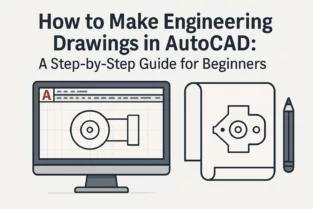
Creating precise and professional engineering drawings in AutoCAD is a fundamental skill for engineers, architects, and designers. AutoCAD has become the industry standard software for technical drafting, allowing professionals to transform concepts into detailed 2D and 3D drawings. Whether you’re a beginner or someone looking to refine your drafting skills, learning how to prepare engineering drawings in AutoCAD step by step will give you a strong foundation.

In this guide, we’ll cover the process of creating engineering drawings in AutoCAD, along with essential tips to help you get started.


What Are Engineering Drawings in AutoCAD?

Engineering drawings are technical representations that communicate design ideas clearly and accurately. These drawings serve as blueprints for manufacturing, construction, or product development. AutoCAD simplifies this process by offering tools for precision, scaling, annotations, and dimensioning, ensuring that the drawings meet industry standards.

With AutoCAD, beginners can create mechanical parts, architectural floor plans, structural layouts, and electrical schematics with ease.


Step-by-Step Guide: How to Create Engineering Drawings in AutoCAD

Step 1: Launch AutoCAD and Set Up the Workspace

  • Open AutoCAD and select a new drawing file.
  • Configure the drawing units (millimeters, centimeters, or inches) using the UNITS command.
  • Set up the drawing limits with the LIMITS command to define your workspace.

This ensures that your engineering drawing is created with the right scale and measurement system from the beginning.


Step 2: Create Layers

Layers help organize different components of your drawing. For example, walls, dimensions, annotations, and centerlines can each have separate layers.

  • Use the LAYER command to create and manage layers.
  • Assign colors and line types for better readability.

Organized layers make your drawing professional and easy to interpret.


Step 3: Start with Basic Geometry

  • Use commands like LINE, CIRCLE, RECTANGLE, and POLYGON to create the basic shapes.
  • Snap and grid settings ensure accuracy by locking points to intersections or midpoints.
  • The OSNAP feature is particularly useful for precision.

This step forms the skeleton of your engineering drawing.


Step 4: Add Dimensions and Annotations

Dimensions are critical in engineering drawings. They define sizes, distances, and tolerances.

  • Use the DIMLINEAR, DIMANGULAR, and DIMALIGNED commands for different types of dimensions.
  • Add text using the TEXT or MTEXT command for notes, labels, and instructions.

This ensures that your drawing communicates technical details effectively.


Step 5: Apply Hatching and Section Views

  • Use the HATCH command to apply patterns to cross-sections, helping to identify materials or cut areas.
  • Section views can be created to show internal features of objects, especially in mechanical drawings.

This makes the drawing more informative and professional.


Step 6: Insert Title Block and Border

Every engineering drawing needs a title block that includes information such as:

  • Project name
  • Designer’s name
  • Date
  • Scale
  • Revision number

AutoCAD allows you to create custom title blocks or use pre-defined templates.


Step 7: Final Checks and Plotting

  • Verify layers, scales, and dimensions.
  • Use the AUDIT and PURGE commands to clean up unused items.
  • Plot or print your drawing using the PLOT command, ensuring that line weights and scales are correct.

Your engineering drawing is now ready for professional use.


Tips for Beginners in AutoCAD Engineering Drawings

  1. Practice with simple projects like bolts, floor plans, or brackets before moving to complex designs.
  2. Use keyboard shortcuts to speed up your drafting process.
  3. Save versions of your file frequently to avoid losing progress.
  4. Refer to drafting standards (ISO, ANSI, or BIS) to make your drawings universally acceptable.
  5. Leverage AutoCAD tutorials and templates to learn industry-specific drawing techniques.

Why Use AutoCAD for Engineering Drawings?

  • Accuracy: AutoCAD allows exact measurements, which is crucial in engineering.
  • Efficiency: Reusable blocks, layers, and templates speed up drawing creation.
  • Collaboration: DWG files can be shared easily across industries.
  • 3D Capabilities: Beginners can start with 2D drawings and gradually move into 3D modeling.

Conclusion

Learning how to create engineering drawings in AutoCAD is a crucial step for anyone entering the engineering or design field. By following a structured process—setting units, creating layers, drafting geometry, adding dimensions, and finalizing with title blocks—you can produce professional-grade drawings. With practice and attention to detail, beginners can master AutoCAD and unlock opportunities in various technical industries.

Is AutoCAD difficult for beginners?

AutoCAD may seem overwhelming at first, but with consistent practice and step-by-step learning, beginners can create professional engineering drawings within weeks. At ASTCAD, we’ve helped countless Australian engineers and drafters master the fundamentals, and we find that most of our clients are confidently producing compliant drawings for Australian Standards within their first month. We recommend starting with basic 2D drafting tasks before moving to 3D modeling, and our team is always available to guide you through the learning process with practical, real-world examples specific to Australian construction and engineering requirements.

Do I need to know engineering concepts before using AutoCAD?

While basic engineering knowledge is helpful, you don’t need to be an expert to start with AutoCAD. At ASTCAD, we recommend familiarising yourself with Australian Standards like AS 1100 for technical drawing conventions, which will help you create compliant and professional drawings. AutoCAD is ultimately a tool for translating your ideas into precise drawings, so pairing it with fundamental understanding of drafting principles ensures your work meets industry requirements and communicates clearly with other professionals.

Can I use AutoCAD for both 2D and 3D drawings?

Yes. AutoCAD is versatile and supports both 2D drafting and 3D modeling, making it ideal for engineering applications.

How do I learn shortcuts in AutoCAD?

Start with commonly used commands like L (Line), C (Circle), TR (Trim), and CO (Copy) to build your foundation. We recommend practicing these daily until they become second nature, then gradually adding more advanced shortcuts. At ASTCAD, we’ve found that Australian engineers benefit from learning industry-specific shortcuts relevant to local standards and compliance requirements. Consistent practice and customizing your keyboard shortcuts to match your workflow will significantly boost your productivity in AutoCAD.

Which industries use engineering drawings in AutoCAD?

Engineering drawings in AutoCAD are essential across mechanical, civil, electrical, architectural, and manufacturing sectors. We at ASTCAD see Australian businesses in these industries rely on AutoCAD for precise technical documentation that meets local standards and compliance requirements. Whether you’re designing infrastructure for Australian construction projects or creating manufacturing specifications, our team helps ensure your drawings are accurate and industry-compliant from start to finish.


JH

James Hartley

Senior Mechanical Engineer · BEng (Mechanical), UQ · Member, Engineers Australia · ASTCAD, Brisbane

James has 14 years of hands-on experience delivering CAD design, structural drafting, and engineering documentation across Australia’s mining, oil & gas, and manufacturing sectors. He specialises in SolidWorks, Autodesk Inventor, and AutoCAD for complex multi-discipline projects.

More articles by James Hartley →
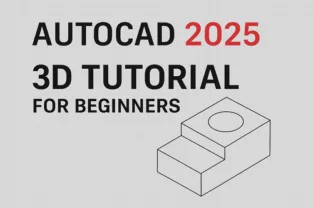
AutoCAD 2025 3D Tutorial for Beginners || AutoCAD 2D to 3D Convert || Step by Step

AutoCAD has always been a powerful tool for engineers, architects, and designers who want to bring their ideas to life. With the release of AutoCAD 2025, creating precise 2D drawings and converting them into 3D models has become even more intuitive. For beginners, learning the step-by-step process of AutoCAD 2D to 3D convert can be a game-changer, helping you visualize projects better and communicate ideas more effectively.

In this tutorial, we’ll walk through the basics of using AutoCAD 2025 to create 3D models from 2D drawings, along with tips to make the transition smoother for new users.


Why Move from 2D to 3D in AutoCAD?

While 2D drafting is essential for floor plans, schematics, and technical layouts, 3D modeling adds depth and realism to your designs. The benefits of converting 2D to 3D in AutoCAD include:

  • Improved visualization – 3D models provide a realistic view of how the final product will look.
  • Better communication – Clients and stakeholders understand 3D visuals more easily than 2D lines.
  • Reduced errors – Spot design issues early by rotating and examining models from different angles.
  • Efficient workflows – Switching to 3D reduces rework and simplifies design modifications.

Getting Started with AutoCAD 2025

Before diving into AutoCAD 2D to 3D convert, make sure you:

  1. Have AutoCAD 2025 installed and updated.
  2. Switch to the 3D Modeling Workspace (found in the top-right corner of AutoCAD).
  3. Familiarize yourself with the 3D tools like Extrude, Revolve, PressPull, and Union.

Step-by-Step Guide: AutoCAD 2D to 3D Convert

Here’s a simple workflow beginners can follow to turn a 2D drawing into a 3D model:

Step 1: Start with a Clean 2D Drawing

  • Open your 2D plan in AutoCAD 2025.
  • Ensure all lines are connected (use the Join command if necessary).
  • Organize layers so each element is easy to identify.

Step 2: Switch to 3D Workspace

  • Go to the top-right corner and select 3D Modeling workspace.
  • The ribbon will update with 3D tools.

Step 3: Create Regions or Surfaces

  • Use the REGION command to convert closed 2D shapes into regions.
  • These regions can then be extruded into 3D solids.

Step 4: Use the Extrude Command

  • Select a closed shape and type EXTRUDE.
  • Enter a height value to give the object thickness.
  • Example: extruding a rectangle into a 3D wall.

Step 5: Apply Revolve for Circular Objects

  • For round objects (like pipes or cylinders), draw a profile in 2D.
  • Use the REVOLVE command around an axis to create 3D geometry.

Step 6: Modify and Refine

  • Use PressPull to push/pull surfaces.
  • Use Union, Subtract, and Intersect to combine or cut objects.
  • Apply Materials and Visual Styles for realistic effects.

Tips for Beginners in AutoCAD 2025 3D

  • Practice simple models first – Start with cubes, cylinders, and basic shapes.
  • Learn shortcuts – Commands like EXTRUDE (EXT), PRESSPULL, and REVOLVE save time.
  • Use isometric view – Switch views frequently (Top, Front, Isometric) to understand geometry.
  • Save regularly – Large 3D models can slow down your system, so save your work often.
  • Experiment with rendering – AutoCAD 2025 has improved rendering for better presentations.

Applications of AutoCAD 2D to 3D Convert

  • Architecture – Transform 2D floor plans into realistic building models.
  • Mechanical engineering – Convert component sketches into machine parts.
  • Interior design – Visualize furniture, layouts, and space planning.
  • Civil engineering – Create 3D bridges, roads, and site layouts.

Conclusion

Mastering AutoCAD 2D to 3D convert in AutoCAD 2025 is an essential step for beginners who want to elevate their design skills. By learning how to extrude, revolve, and modify 3D shapes, you can transform simple 2D drawings into realistic 3D models. Whether you’re an architect, engineer, or student, practicing these tools will help you visualize and communicate your ideas effectively.

With AutoCAD 2025, the process has become more user-friendly, making it the perfect time for beginners to dive into 3D modeling.

Is AutoCAD 2025 beginner-friendly for 3D modeling?

Yes, AutoCAD 2025 is very beginner-friendly for 3D modeling. We’ve found the simplified interface and guided workflows make it easy for Australian drafters to transition from 2D to 3D work. Our step-by-step tutorials help you master 3D modeling quickly, and the software supports Australian design standards and conventions used across construction and engineering industries.

What’s the difference between 2D and 3D in AutoCAD?

In AutoCAD, 2D drawings use only X and Y coordinates for flat plans commonly used in Australian architectural and construction documentation. 3D adds the Z-axis for depth, enabling realistic models essential for visualising building projects, engineering designs, and complex structures before construction begins. We recommend starting with 2D fundamentals before progressing to 3D modelling for comprehensive design solutions.

Can I convert old 2D drawings into 3D in AutoCAD 2025?

Absolutely. At ASTCAD, we help Australian drafters convert legacy 2D drawings into 3D models using AutoCAD 2025. Simply open your existing files, clean up the geometry, then use commands like EXTRUDE and REVOLVE to build 3D solids. We recommend validating dimensions against your original specifications before finalising your 3D conversion.

Do I need a powerful computer for AutoCAD 3D?

For basic 3D modeling in AutoCAD, most modern PCs work fine. However, for larger and more complex models typical in Australian architectural and engineering projects, we recommend a system with at least 16GB RAM, a dedicated graphics card, and SSD storage. We find that professionals working on construction documentation and detailed technical drawings benefit significantly from these specifications to ensure smooth performance and faster rendering times.

How can I learn AutoCAD 2D to 3D convert faster?

Start with simple exercises, watch beginner tutorials, and practice regularly. At ASTCAD, we recommend our step-by-step guidelines that focus on Australian building standards and construction practices. AutoCAD 2025’s built-in learning resources, combined with our specialised 3D conversion techniques, help you master the transition from 2D to 3D drafting faster.


CS

Claire Sutton

Architectural CAD Specialist & Technical Writer · BArch (Hons), QUT · ASTCAD, Brisbane

Claire has 10 years of experience in Revit BIM modelling, architectural documentation, and CAD conversion projects across Southeast Queensland and NSW. She has delivered NCC-compliant documentation for residential, commercial, and industrial facilities.

More articles by Claire Sutton →
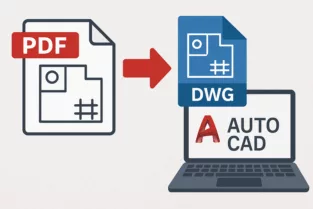
PDF Drawings to DWG File in AutoCAD

In the world of design, engineering, and construction, sharing drawings in PDF format is common practice. However, professionals often need to edit these drawings in AutoCAD, which requires converting them into DWG files. If you’ve ever wondered how to efficiently convert PDF Drawings to DWG File in AutoCAD, this guide will walk you through the process step by step. By the end, you’ll have a clear understanding of how to handle PDF conversions and make your workflow smoother.


Why Convert PDF Drawings to DWG File in AutoCAD?

PDFs are excellent for sharing and printing drawings because they maintain formatting across different devices. However, PDFs are not editable in their native form. On the other hand, DWG files—the native format for AutoCAD—allow full editing capabilities. Converting PDF to DWG files in AutoCAD ensures you can:

  • Edit lines, curves, and shapes directly.
  • Modify text, dimensions, and annotations.
  • Incorporate old project drawings into new designs.
  • Save time by avoiding manual redrawing.

Step-by-Step Guide to Converting PDF to DWG in AutoCAD

Here’s a simple, detailed process to help you convert files accurately.

Step 1: Open AutoCAD

Start by launching AutoCAD on your computer. Ensure you’re using a version that supports PDF import functionality (AutoCAD 2017 and later versions include this feature).

Step 2: Locate the PDF Import Tool

  • Go to the Insert tab on the AutoCAD ribbon.
  • Select the Import PDF option.

Step 3: Choose Your PDF File

A file selection window will appear. Browse and select the PDF drawing you want to convert. AutoCAD allows both single-page and multi-page PDFs to be imported.

Step 4: Adjust Import Settings

AutoCAD will display several import options:

  • Specify Insertion Point, Scale, and Rotation – Allows you to control where and how the PDF is placed.
  • Import PDF Data – Choose whether to import geometry, text, or raster images.
  • Layers – You can decide whether to import objects to one layer or retain original PDF layer settings.

Choose the settings according to your project needs.

Step 5: Complete the Import

Click OK to finalize the import. AutoCAD will convert the PDF elements into editable DWG objects, such as polylines, arcs, and text.

Step 6: Clean Up the Drawing

After conversion, some elements may need adjustments. For example:

  • Text might not align perfectly.
  • Hatch patterns may appear as separate lines.
  • Raster images remain as non-editable objects.

Use AutoCAD’s editing tools to refine the drawing for better accuracy.


Best Practices for Converting PDF to DWG in AutoCAD

To ensure smooth conversions, consider these tips:

  • Use High-Quality PDFs: Low-resolution or scanned PDFs may result in inaccurate DWG conversions.
  • Simplify Before Importing: If possible, reduce the number of layers or details in the original PDF.
  • Check for Scaling Issues: Always verify dimensions after importing to maintain accuracy.
  • Clean Unnecessary Objects: Delete extra lines, duplicate text, or unwanted raster images after conversion.

Benefits of Using AutoCAD’s Built-In PDF to DWG Conversion

  1. Time-Saving: No need for manual tracing of drawings.
  2. Accuracy: Vector data from PDFs is directly converted into editable geometry.
  3. Compatibility: Imported files can be integrated into new or ongoing projects.
  4. Cost-Effective: Eliminates the need for third-party conversion software.

Common Challenges and How to Overcome Them

  • Scanned PDFs: AutoCAD cannot directly convert raster images into editable geometry. In such cases, use OCR (Optical Character Recognition) software before importing.
  • Text Recognition Issues: Sometimes, text may import as polylines instead of editable text. Use AutoCAD’s TXTEXP or manually replace the text.
  • File Size: Large PDFs can slow down AutoCAD. Simplify or break down the file if necessary.

Conclusion

Converting PDF to DWG in AutoCAD is a powerful way to reuse existing drawings without wasting time on manual redrawing. By following the step-by-step guide above, you can import PDFs directly, edit them as needed, and integrate them into your projects with ease. Although you may need to refine the file after import, the process ultimately saves time, boosts productivity, and ensures higher accuracy in your design workflow.

If you often work with shared drawings, mastering PDF to DWG conversion in AutoCAD is an essential skill that enhances efficiency and collaboration across projects.

Can AutoCAD convert scanned PDF drawings to DWG?

AutoCAD’s import tool works best with vector-based PDFs, which is common for most professional drawings in Australia. For scanned or raster PDFs, we recommend using OCR software to convert the image data, or our team can assist with manual tracing for complex architectural and engineering documents. We find this approach ensures accuracy for Australian building codes and standards compliance.

Is the converted DWG file 100% accurate?

Not always, but our experience with Australian construction standards shows AutoCAD handles most conversions well. You may need to clean up lines, text, and hatches after import, especially if your original PDF contains complex hatching or non-standard fonts common in older Australian plans. We recommend reviewing layers and scale references to ensure compliance with local building codes before finalising your DWG file.

Which versions of AutoCAD support PDF to DWG conversion?

AutoCAD 2017 and later versions include a built-in PDF import tool that makes conversion straightforward. If you’re using older versions, we recommend third-party solutions like Adobe Acrobat or dedicated conversion software. Here at ASTCAD, we typically advise Australian firms to upgrade to current versions, as they offer better compatibility with local standards and improved performance for complex technical drawings.

Can I batch convert multiple PDFs to DWG files?

Yes, while AutoCAD doesn’t have native batch conversion features, we recommend using third-party conversion tools like Able2Extract or specialist PDF-to-DWG converters for processing multiple files efficiently. Many Australian engineering firms use these solutions to handle large document batches, which saves considerable time on projects. We can advise on reliable options during your consultation if you’re managing extensive drawing conversions for your practice.

Do I lose any data during conversion?

Raster images and some special annotations may not convert to editable objects. Always review the file after import to ensure accuracy


CS

Claire Sutton

Architectural CAD Specialist & Technical Writer · BArch (Hons), QUT · ASTCAD, Brisbane

Claire has 10 years of experience in Revit BIM modelling, architectural documentation, and CAD conversion projects across Southeast Queensland and NSW. She has delivered NCC-compliant documentation for residential, commercial, and industrial facilities.

More articles by Claire Sutton →
AI in Engineering

The integration of Artificial Intelligence (AI) in engineering has revolutionized various disciplines, and one of the most promising applications lies in CAD (Computer-Aided Design) drafting. As industries continue to demand faster, smarter, and more accurate design processes, AI in engineering CAD drafting is emerging as a game-changer.

From automating repetitive tasks to offering intelligent design suggestions, AI is not just a tool but a transformational force that will shape the future of engineering drafting. This blog explores how AI is influencing engineering CAD drafting and what the future holds.

How AI is Changing Engineering CAD Drafting

1. Automating Repetitive Tasks

Traditionally, CAD drafters spend hours on manual tasks such as dimensioning, annotation, and creating standard components. AI-powered drafting tools now automate these repetitive steps, allowing engineers to focus on design innovation.

2. Enhanced Error Detection

AI systems use predictive analytics and machine learning to scan designs for inconsistencies, errors, or clashes in real time, reducing design errors and ensuring higher accuracy in project delivery.

3. Generative Design Capabilities

By inputting design constraints and goals, AI algorithms can generate multiple design alternatives that meet functional requirements, allowing engineers to evaluate the most efficient and structurally sound options.

4. Improved Collaboration

Cloud-based AI tools allow seamless collaboration between engineers, architects, and other stakeholders, automatically syncing changes, highlighting revisions, and providing real-time feedback.

5. AI-Powered Design Recommendations

AI can analyze massive datasets from previous engineering projects and offer intelligent design suggestions for better materials, optimized structural integrity, and reduced unnecessary components.

Future Trends of AI in Engineering CAD Drafting

  • Natural Language Processing (NLP) — Engineers will interact with CAD software using natural language commands.
  • Voice and Gesture Recognition — Hands-free operation especially beneficial in VR/AR CAD environments.
  • Predictive Maintenance — AI evaluates lifespan and failure points during the drafting phase.
  • Digital Twins Integration — AI integrates real-world data into CAD models for lifecycle simulation.

Benefits of AI in Engineering CAD Drafting

  • Time Efficiency: Speeds up drafting through automation.
  • Accuracy: Minimises human error with intelligent checking.
  • Cost Savings: Reduces rework through optimal design suggestions.
  • Innovation: Enables generative design and smart simulations.

By adopting AI in engineering CAD drafting today, companies can future-proof their workflows, enhance project outcomes, and maintain a competitive edge in the rapidly evolving digital landscape.

The future of engineering CAD drafting lies in embracing AI in engineering to drive smarter, faster, and more innovative design processes. Contact ASTCAD to discuss how AI-enhanced drafting can benefit your projects.

What is AI in Engineering CAD Drafting?

AI in engineering CAD drafting uses machine learning and automation to enhance design accuracy and streamline the drafting process. At ASTCAD, we leverage these technologies to help Australian engineers and architects work more efficiently, reducing manual tasks while maintaining compliance with local building codes and standards. Our AI-powered tools assist with everything from automating repetitive drafting work to improving project decision-making, ultimately helping your team deliver better designs faster.

How does AI benefit CAD drafters?

AI assists CAD drafters by automating repetitive tasks, reducing errors, offering smart design suggestions, and enabling faster revisions, thus increasing efficiency and creativity.

Can AI replace human drafters?

No, AI is designed to assist, not replace. At ASTCAD, we see AI as a powerful tool that handles repetitive tasks like dimensioning and layer management, freeing our drafters to focus on creative problem-solving and complex engineering judgment. Human expertise remains essential for interpreting Australian building codes, navigating compliance requirements, and delivering the contextual understanding that clients depend on. Our experience shows the most effective approach combines AI efficiency with human skill and oversight.

What skills do engineers need to work with AI in CAD drafting?

Engineers should have a good understanding of CAD tools, basic knowledge of AI concepts, and adaptability to learn new AI-powered software features.

What is the future of AI in engineering?

At ASTCAD, we’re excited about AI’s transformative role in Australian engineering. We’re seeing intelligent design automation that learns from our local building codes and standards, seamless integration with digital twins for real-time project monitoring, and predictive analytics that help us anticipate design challenges before they occur. Our clients benefit from AI-enhanced collaboration tools that keep distributed teams connected across Australia’s vast geography, while maintaining compliance with relevant Australian Standards and regulations throughout the drafting process.


JH

James Hartley

Senior Mechanical Engineer · BEng (Mechanical), UQ · Member, Engineers Australia · ASTCAD, Brisbane

James has 14 years of hands-on experience delivering CAD design, structural drafting, and engineering documentation across Australia’s mining, oil & gas, and manufacturing sectors. He specialises in SolidWorks, Autodesk Inventor, and AutoCAD for complex multi-discipline projects.

More articles by James Hartley →
AI in Drafting

As the architecture, engineering, and construction (AEC) industries continue to evolve, the role of AI in drafting has become increasingly important. In 2025, artificial intelligence is no longer a futuristic concept—it’s a practical, everyday tool for CAD professionals aiming to streamline workflows, reduce errors, and enhance creativity.

What is AI in Drafting?

AI in drafting refers to the use of artificial intelligence technologies to automate, optimize, and assist with various tasks in computer-aided design (CAD) drafting. This includes intelligent drawing suggestions, automated layer management, real-time error detection, and generative design capabilities.

Why AI Matters for CAD Professionals in 2025

1. Increased Efficiency

AI-powered tools automate repetitive tasks like dimensioning, annotations, symbol placement, and file conversions, freeing up valuable time for designers to focus on creativity.

2. Fewer Errors

AI in drafting detects inconsistencies, design clashes, and structural errors in real-time, helping drafters avoid rework and reduce project costs.

3. Intelligent Recommendations

AI understands design intent and offers smart suggestions based on context, historical data, and industry best practices, significantly improving design accuracy and productivity.

4. Seamless Collaboration

AI-integrated drafting platforms include cloud-based solutions enabling multiple team members to collaborate in real-time with AI-supported version control and change tracking.

5. Adaptive Learning

Modern AI systems learn from the user’s behaviour and improve over time. As the software adapts to the drafter’s style and preferences, workflows become smoother and more intuitive.

Key AI Tools Used in CAD Drafting Today

  • Autodesk’s AI Assistant: Intelligent drawing recommendations and automated complex tasks.
  • BricsCAD’s BIM AI Tools: Detect and repair broken geometry, automate tagging.
  • SolidWorks AI Drafting Assistant: Generative design options and error detection.
  • Chatbot Integration: AI chatbots assist with command prompts directly within the CAD interface.

How to Start Integrating AI in Your Drafting Workflow

  1. Upgrade Your Software: Use the latest AI-enabled CAD platforms such as AutoCAD, Revit, or BricsCAD.
  2. Take Online Courses: Platforms like Coursera, Udemy, and Autodesk Learning Hub offer updated AI drafting courses.
  3. Use AI Plugins: Install AI-based plugins tailored to your specific drafting needs.
  4. Practice with AI Features: Try automated drawing tools, clash detection, and layout optimisation.
  5. Collaborate with AI Experts: Join forums where professionals share insights about using AI in drafting.

The Future of AI in Drafting

Predictive modelling, real-time collaboration with augmented reality, and deeper integration with BIM systems will become standard. Drafters will spend less time on technical details and more on design strategy and creativity.

Embracing AI today prepares CAD professionals to stay relevant, efficient, and competitive in the ever-changing design landscape.

AI in drafting is not just a trend—it’s the future of CAD design and a vital tool for professionals in 2025 and beyond. Talk to ASTCAD about integrating AI into your drafting workflow today.


JH

James Hartley

Senior Mechanical Engineer · BEng (Mechanical), UQ · Member, Engineers Australia · ASTCAD, Brisbane

James has 14 years of hands-on experience delivering CAD design, structural drafting, and engineering documentation across Australia’s mining, oil & gas, and manufacturing sectors. He specialises in SolidWorks, Autodesk Inventor, and AutoCAD for complex multi-discipline projects.

More articles by James Hartley →
AI for 2D Drafting & Drawing

In the world of architectural, mechanical, and civil design, 2D drafting remains a foundational element of any successful project. But with increasing pressure to deliver high-quality drawings faster and with greater accuracy, professionals are now turning to AI for Automated 2D Drafting & Drawingto streamline workflows, minimize errors, and increase productivity.

AI for Automated 2D Drafting & Drawing

AI technologies are revolutionizing traditional CAD processes, automating repetitive tasks, and intelligently suggesting or even generating complete design elements. If you’re looking to integrate AI into your drafting process, this step-by-step guide will walk you through the essential stages.


Step 1: Understand the Capabilities of AI in 2D Drafting

Before diving into automation, it’s important to understand what AI can do in the context of 2D drafting and drawing:

  • Auto-generation of floor plans and layouts based on parameters.
  • Intelligent object recognition and annotation.
  • Real-time error detection and correction.
  • Layer management and standardization.
  • Drafting suggestions based on learned design patterns.

AI tools don’t replace designers—they enhance their capabilities by taking over time-consuming tasks, allowing engineers and architects to focus on creativity and precision.


Step 2: Choose the Right AI-Powered Drafting Software

To get started with AI for 2D Drafting & Drawing, you need software that integrates AI-driven features. Some popular tools include:

  • AutoCAD with Autodesk AI enhancements
  • BricsCAD with AI-assisted BIM and drafting tools
  • ZWCAD with smart voice and drawing commands
  • ArCADia BIM for architecture-focused automation

Ensure the software supports your file formats, industry standards, and offers integration with existing tools in your workflow.


Step 3: Train or Upload Existing Drawing Data

AI becomes more effective when it has access to a rich dataset. Most platforms allow you to upload previous drawings or standard templates so the AI can:

  • Learn recurring patterns.
  • Understand layer usage.
  • Automate recurring annotations or dimensioning styles.

Feeding your system with historical data increases the relevance and accuracy of the automated suggestions.


Step 4: Set Automation Parameters

Depending on your project type, you can set rules or parameters for:

  • Dimensions and tolerances.
  • Layer styles and naming conventions.
  • Text annotations and callouts.
  • Symbol libraries and object standards.

This ensures AI-generated drawings adhere to your firm’s standards or specific project requirements.


Step 5: Automate Repetitive Drafting Tasks

Once your AI system is trained and set up, you can begin automating:

  • Title block insertion and sheet numbering.
  • Layer assignment and visibility control.
  • Auto-dimensioning of standard components.
  • Repetitive component placement (e.g., windows, beams, fixtures).

This saves hours on tasks that were once manually done, especially in large projects.


Step 6: Use AI-Based Error Detection

One of the most powerful applications of AI for 2D Drafting & Drawing is error detection. AI can:

  • Identify misaligned objects.
  • Detect missing dimensions or annotations.
  • Flag inconsistencies in layer usage.
  • Highlight overlaps or potential conflicts.

This real-time feedback dramatically reduces costly revisions and improves drawing quality.


Step 7: Collaborate and Review

Many AI-powered drafting platforms include cloud or team-based review features. Use these to:

  • Share AI-generated drafts for feedback.
  • Track design suggestions and corrections.
  • Collaborate with remote teams and make decisions faster.

AI can also assist during this stage by summarizing changes or tracking revision history.


Step 8: Export and Finalize Your Drawings

After review, AI tools allow you to finalize and export your work into:

  • DWG/DXF files for CAD platforms.
  • PDF for client sharing.
  • BIM formats for integration with 3D models.

Make sure to do a manual check of all automated tasks before final submission, especially for regulatory compliance or project approvals.


Benefits of Using AI for 2D Drafting & Drawing

  • Speed: Automates hours of manual work.
  • Accuracy: Reduces human error.
  • Consistency: Ensures all drawings follow standards.
  • Productivity: Teams can complete more work in less time.
  • Innovation: Allows designers to focus on high-level tasks.

AI is transforming the way we approach drafting by simplifying processes, improving accuracy, and helping professionals focus on design excellence. By following this step-by-step guide, you can start incorporating AI for 2D Drafting & Drawing in your workflow and stay ahead in an increasingly automated industry.

Can AI completely replace human drafters in 2D drawing tasks?

AI enhances and supports human capabilities but does not replace the critical thinking, creativity, and decision-making that human designers bring to the table.

What type of projects benefit the most from AI in 2D drafting?

Projects with repetitive tasks, high volumes of drawings, or standard design elements (like housing layouts, piping schematics, electrical plans) benefit greatly from AI-based automation.

Is it necessary to have programming knowledge to use AI drafting tools?

No, programming knowledge isn’t necessary to use our AI drafting tools at ASTCAD. Our platform is designed with Australian drafting professionals in mind, featuring intuitive interfaces that automate common 2D tasks like line work, dimensioning, and standard detail generation without any coding required. For advanced users who want deeper customization, we do offer scripting options and API access, but these are entirely optional extensions to the core functionality.

Are AI drafting tools expensive?

AI drafting tools are increasingly affordable in Australia. Many mainstream CAD packages now include AI features as standard, while specialist tools are available as cost-effective add-ons. We recommend evaluating the productivity gains and time savings against the investment, as most Australian firms see positive ROI within months through faster project completion and reduced manual drafting hours.

Is AI drafting only useful for large firms?

No. Small and mid-size Australian drafting firms can benefit significantly from AI automation, often more than larger organisations. By streamlining repetitive 2D drafting tasks, you’ll reduce staff workload, accelerate project turnaround, and compete effectively against bigger competitors without proportional cost increases. Our AI tools are designed to scale with your business needs.


JH

James Hartley

Senior Mechanical Engineer · BEng (Mechanical), UQ · Member, Engineers Australia · ASTCAD, Brisbane

James has 14 years of hands-on experience delivering CAD design, structural drafting, and engineering documentation across Australia’s mining, oil & gas, and manufacturing sectors. He specialises in SolidWorks, Autodesk Inventor, and AutoCAD for complex multi-discipline projects.

More articles by James Hartley →
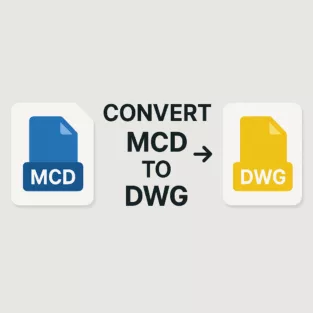
Convert MCD to DWG

In the world of architecture, engineering, and design, compatibility between file formats is essential. If you’ve ever worked with Vectorworks, you might have encountered files with the .mcd extension. However, most professionals working in AutoCAD prefer .dwg format due to its widespread compatibility. This blog provides a comprehensive step-by-step guide on how to convert MCD to DWG efficiently.

What is an MCD File?

MCD stands for MiniCAD Drawing, a file format used by older versions of Vectorworks (previously MiniCAD). These files contain design data, drawings, and 2D/3D objects used in architecture and engineering drafting. However, the MCD format is now outdated and has been replaced by the .vwx format in newer Vectorworks versions.

Why Convert MCD to DWG?

AutoCAD and many other CAD software programs use the DWG (Drawing) format, making it a standard for sharing design files. Converting your MCD file to DWG ensures:

  • Greater software compatibility
  • Easier collaboration with teams using AutoCAD
  • Simplified project management and archival
  • Access to more editing and annotation tools

How to Convert MCD File to DWG File – Step-by-Step

Follow these detailed steps to convert an MCD file to DWG format successfully:


Step 1: Check the Source Software

To convert MCD files, you will need access to Vectorworks—preferably the version that supports MCD files. If your file is from an older version, you may need to install an older version of Vectorworks first to open the file.

  • If you have a .mcd file, try using Vectorworks 2008 or earlier.
  • Open the MCD file within Vectorworks to confirm the content loads correctly.

Step 2: Save or Export as VWX (Optional but Recommended)

If you’re using a very old Vectorworks version:

  • First, save the MCD file as a VWX file, the newer format supported by recent Vectorworks versions.
  • This will help avoid compatibility issues in the next step.

Step 3: Use Vectorworks to Export as DWG

Vectorworks has a built-in export feature to convert files to AutoCAD DWG format.

To export the file:

  1. Open the MCD (or VWX) file in Vectorworks.
  2. Click on File > Export > Export DXF/DWG.
  3. A dialog box will appear—choose the correct AutoCAD version (e.g., 2013, 2018, or 2021).
  4. Choose the layers, classes, or sheets you want to export.
  5. Click OK to begin the conversion.
  6. Vectorworks will generate a .dwg file that you can now open in AutoCAD.

Step 4: Verify the DWG Output in AutoCAD

Once the file is exported:

  1. Open AutoCAD.
  2. Go to File > Open and select your converted DWG file.
  3. Review the file for accuracy—check dimensions, layers, text, and geometry to ensure everything is intact.
  4. Make any necessary adjustments or layer reassignments within AutoCAD.

Alternative Method: Use File Conversion Software

If you don’t have access to Vectorworks, you can try using third-party file conversion tools or services. Some tools that claim to support MCD to DWG conversion include:

  • AnyConv
  • Zamzar
  • CloudConvert (limited success)
  • Professional CAD conversion services

Note: These tools often have limitations and may not support complex geometry or layer formatting, so use them only if the file is simple or if you have no other option.


Tips for Successful Conversion

  • Backup your original MCD file before conversion.
  • Use the latest compatible version of Vectorworks for better export options.
  • Maintain consistent units (mm/inches) during the export process.
  • Check layer visibility and class settings before exporting to DWG.

Common Issues and Fixes

IssueSolution
File not opening in VectorworksTry using an older version of Vectorworks or contact the file provider.
Exported DWG missing elementsEnable all layers/classes before exporting.
Text or dimensions look offRecheck font compatibility and dimension scale settings.
AutoCAD reports file errorUse DWG TrueView to check and recover corrupted files.

Being able to convert MCD file to DWG file is crucial for professionals dealing with legacy Vectorworks designs and modern AutoCAD workflows. Whether you’re using built-in Vectorworks export features or third-party conversion tools, following this guide ensures accurate and efficient results. Always verify the converted file for formatting, accuracy, and completeness to avoid issues during project development.

What software do I need to convert an MCD file to DWG?

To convert an MCD file to DWG format, you’ll need Vectorworks software, preferably version 2008 or earlier. We recommend this version because it offers the most reliable MCD compatibility and export functionality for Australian drafting standards. Once you have the file open in Vectorworks, you can simply export it as a DWG file, which is compatible with AutoCAD and most other industry-standard design programs used across Australian engineering and construction firms.

Can AutoCAD open MCD files directly?

No, AutoCAD cannot open MCD files directly as it doesn’t support this format. We recommend converting your MCD file to DWG using Vectorworks or a specialised converter tool before opening it in AutoCAD. This is particularly important for Australian projects where DWG remains the industry standard for compliance with local design standards and building codes. Our team can assist with conversion if needed.

Is there any free way to convert MCD files to DWG?

There is no fully free method unless you already have access to Vectorworks. Some online tools claim support, but reliability is not guaranteed.

Will the DWG file retain layers and line weights from the MCD file?

Yes, the DWG file will retain layers and line weights from your MCD file when you configure the export settings correctly in Vectorworks. We recommend checking that your layer names comply with Australian standards and that line weights are set to match your organisation’s drafting conventions before exporting. Our team can assist with specific configuration questions to ensure your converted files meet local engineering requirements.

What if I don’t have Vectorworks installed?

If you don’t have Vectorworks installed, we recommend contacting a professional CAD conversion service like ASTCAD to handle the conversion for you. Our team can quickly convert your MCD files to DWG format, ensuring compatibility with AutoCAD and other standard Australian drafting software. This is particularly useful if you’re collaborating with contractors or consultants who require DWG files for construction documentation or compliance with local building standards.


CS

Claire Sutton

Architectural CAD Specialist & Technical Writer · BArch (Hons), QUT · ASTCAD, Brisbane

Claire has 10 years of experience in Revit BIM modelling, architectural documentation, and CAD conversion projects across Southeast Queensland and NSW. She has delivered NCC-compliant documentation for residential, commercial, and industrial facilities.

More articles by Claire Sutton →
Get a free quote — 1800 287 223