
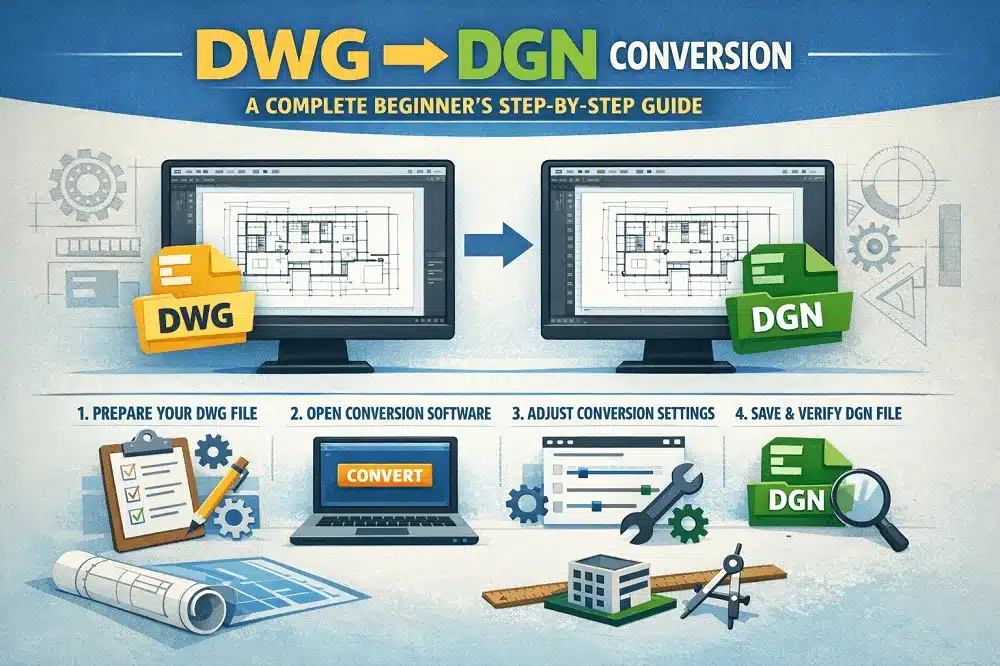
In today’s collaborative engineering and infrastructure projects, working with multiple CAD file formats is common. Two of the most widely used formats are DWG (AutoCAD) and DGN (MicroStation). When teams use different software platforms, accurate file conversion becomes essential. This is where DWG to DGN conversion plays a critical role.
This beginner-friendly guide explains everything you need to know about DWG to DGN conversion, including tools, processes, best practices, and common challenges.
What is DWG to DGN conversion?
DWG to DGN conversion is the process of transforming AutoCAD DWG files into MicroStation DGN format while maintaining design accuracy, layers, annotations, and geometry. DWG is primarily used in AutoCAD and other Autodesk tools, while DGN is the native format of Bentley MicroStation, widely used in infrastructure, transportation, and civil engineering projects.
Why DWG to DGN conversion is important
- Cross-platform project collaboration
- Government and infrastructure projects requiring DGN files
- Maintaining design consistency across CAD software
- Reducing rework and manual redrawing
- Improving workflow efficiency
Common challenges
- Loss of layers or incorrect layer mapping
- Font and text alignment issues
- Line style and weight mismatches
- Missing blocks or symbols
- Scaling and unit inconsistencies
Step-by-step guide
Step 1: Review the DWG file
Clean unnecessary layers, remove unused blocks and references, check drawing units and scale, and ensure text styles and fonts are standard.
Step 2: Choose the right conversion tool
Options include Bentley MicroStation, AutoCAD with export options, or dedicated CAD conversion software.
Step 3: Set conversion preferences
Map DWG layers to DGN levels, define line styles and weights, match colors and symbology, and set correct units and scale.
Step 4: Convert DWG to DGN
Import or open the DWG file in MicroStation, save or export in DGN format, and use batch conversion for multiple files if needed.
Step 5: Verify the converted DGN file
Check geometry accuracy, review text, dimensions and annotations, verify layers and line styles, and confirm scale and alignment.
Step 6: Final cleanup and optimisation
Fix text spacing issues, correct level naming, optimise file size, and apply MicroStation standards if required.
Best conversion tips
- Always clean DWG files before conversion
- Use standard fonts to avoid text errors
- Maintain consistent units across files
- Test convert a sample file before batch processing
- Perform post-conversion quality checks
What is the difference between DWG and DGN files?
DWG and DGN are two distinct file formats used across the Australian engineering and construction industry. DWG, developed by Autodesk for AutoCAD, is the most widely used format in Australia and stores design data in a proprietary structure. DGN, used by Bentley’s MicroStation, is common in infrastructure and civil projects. The key differences lie in how they handle layers, symbology, and coordinate systems—DWG uses a flatter structure while DGN supports more complex cell-based elements, which can affect how our team converts between them for Australian projects.
Can DWG be converted to DGN without data loss?
Yes, with proper tools and settings, DWG to DGN conversion can be done with minimal or no data loss. Here at ASTCAD, we use specialised conversion software that preserves layer structures, line weights, and annotation data that comply with Australian standards. We recommend pre-conversion checks to ensure all custom blocks and references are compatible with MicroStation environments commonly used by Australian engineering firms. Our team can guide you through the process to maintain data integrity throughout the conversion.
Which software is best for DWG to DGN conversion?
Bentley MicroStation is one of the most reliable tools for accurate DWG to DGN conversion, and we recommend it as the industry standard for Australian engineering and infrastructure projects. We’ve successfully converted thousands of drawings for clients across Australia, and MicroStation consistently delivers high-fidelity conversions while preserving complex layer structures and annotation details. For best results, we suggest using MicroStation’s native conversion features rather than third-party tools, as this maintains compatibility with Australian standards and ensures your infrastructure designs remain precise throughout the conversion process.
Are DWG to DGN conversion tutorials helpful for beginners?
Yes, step-by-step tutorials help beginners understand settings, avoid errors, and ensure accurate results.
What are the most common DWG to DGN conversion errors?
The most common DWG to DGN conversion errors we see include incorrect layer mapping, font substitution issues, scale mismatches particularly with Australian standard drawing sizes, and line style differences between formats. We recommend validating your layer structures before conversion and ensuring all custom fonts are embedded or substituted with standard alternatives. Our team always advises checking scale settings against Australian engineering standards to prevent costly revisions on site.
Should I convert DWG to DGN manually or use professional services?
For simple drawings, manual conversion is sufficient. For complex or large projects, professional services are recommended.