
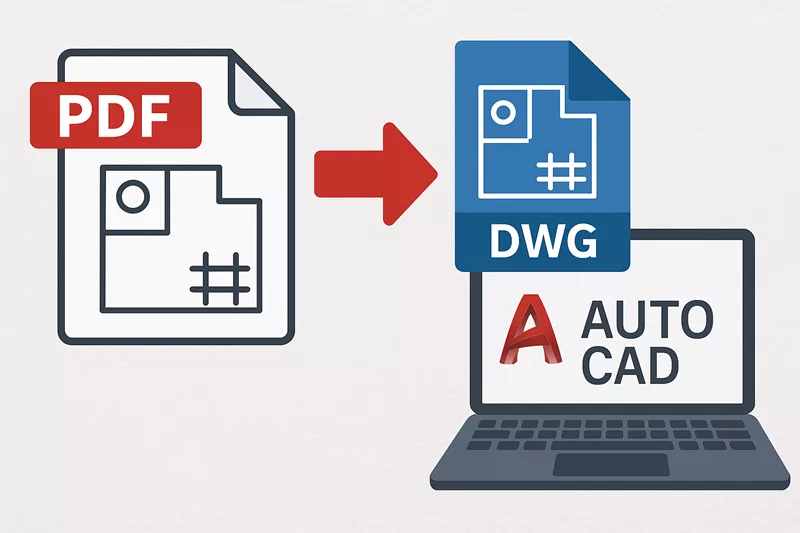
In the world of design, engineering, and construction, sharing drawings in PDF format is common practice. However, professionals often need to edit these drawings in AutoCAD, which requires converting them into DWG files. If you’ve ever wondered how to efficiently convert PDF Drawings to DWG File in AutoCAD, this guide will walk you through the process step by step. By the end, you’ll have a clear understanding of how to handle PDF conversions and make your workflow smoother.
Why Convert PDF Drawings to DWG File in AutoCAD?
PDFs are excellent for sharing and printing drawings because they maintain formatting across different devices. However, PDFs are not editable in their native form. On the other hand, DWG files—the native format for AutoCAD—allow full editing capabilities. Converting PDF to DWG files in AutoCAD ensures you can:
- Edit lines, curves, and shapes directly.
- Modify text, dimensions, and annotations.
- Incorporate old project drawings into new designs.
- Save time by avoiding manual redrawing.
Step-by-Step Guide to Converting PDF to DWG in AutoCAD
Here’s a simple, detailed process to help you convert files accurately.
Step 1: Open AutoCAD
Start by launching AutoCAD on your computer. Ensure you’re using a version that supports PDF import functionality (AutoCAD 2017 and later versions include this feature).
Step 2: Locate the PDF Import Tool
- Go to the Insert tab on the AutoCAD ribbon.
- Select the Import PDF option.
Step 3: Choose Your PDF File
A file selection window will appear. Browse and select the PDF drawing you want to convert. AutoCAD allows both single-page and multi-page PDFs to be imported.
Step 4: Adjust Import Settings
AutoCAD will display several import options:
- Specify Insertion Point, Scale, and Rotation – Allows you to control where and how the PDF is placed.
- Import PDF Data – Choose whether to import geometry, text, or raster images.
- Layers – You can decide whether to import objects to one layer or retain original PDF layer settings.
Choose the settings according to your project needs.
Step 5: Complete the Import
Click OK to finalize the import. AutoCAD will convert the PDF elements into editable DWG objects, such as polylines, arcs, and text.
Step 6: Clean Up the Drawing
After conversion, some elements may need adjustments. For example:
- Text might not align perfectly.
- Hatch patterns may appear as separate lines.
- Raster images remain as non-editable objects.
Use AutoCAD’s editing tools to refine the drawing for better accuracy.
Best Practices for Converting PDF to DWG in AutoCAD
To ensure smooth conversions, consider these tips:
- Use High-Quality PDFs: Low-resolution or scanned PDFs may result in inaccurate DWG conversions.
- Simplify Before Importing: If possible, reduce the number of layers or details in the original PDF.
- Check for Scaling Issues: Always verify dimensions after importing to maintain accuracy.
- Clean Unnecessary Objects: Delete extra lines, duplicate text, or unwanted raster images after conversion.
Benefits of Using AutoCAD’s Built-In PDF to DWG Conversion
- Time-Saving: No need for manual tracing of drawings.
- Accuracy: Vector data from PDFs is directly converted into editable geometry.
- Compatibility: Imported files can be integrated into new or ongoing projects.
- Cost-Effective: Eliminates the need for third-party conversion software.
Common Challenges and How to Overcome Them
- Scanned PDFs: AutoCAD cannot directly convert raster images into editable geometry. In such cases, use OCR (Optical Character Recognition) software before importing.
- Text Recognition Issues: Sometimes, text may import as polylines instead of editable text. Use AutoCAD’s TXTEXP or manually replace the text.
- File Size: Large PDFs can slow down AutoCAD. Simplify or break down the file if necessary.
Conclusion
Converting PDF to DWG in AutoCAD is a powerful way to reuse existing drawings without wasting time on manual redrawing. By following the step-by-step guide above, you can import PDFs directly, edit them as needed, and integrate them into your projects with ease. Although you may need to refine the file after import, the process ultimately saves time, boosts productivity, and ensures higher accuracy in your design workflow.
If you often work with shared drawings, mastering PDF to DWG conversion in AutoCAD is an essential skill that enhances efficiency and collaboration across projects.
Can AutoCAD convert scanned PDF drawings to DWG?
AutoCAD’s import tool works best with vector-based PDFs, which is common for most professional drawings in Australia. For scanned or raster PDFs, we recommend using OCR software to convert the image data, or our team can assist with manual tracing for complex architectural and engineering documents. We find this approach ensures accuracy for Australian building codes and standards compliance.
Is the converted DWG file 100% accurate?
Not always, but our experience with Australian construction standards shows AutoCAD handles most conversions well. You may need to clean up lines, text, and hatches after import, especially if your original PDF contains complex hatching or non-standard fonts common in older Australian plans. We recommend reviewing layers and scale references to ensure compliance with local building codes before finalising your DWG file.
Which versions of AutoCAD support PDF to DWG conversion?
AutoCAD 2017 and later versions include a built-in PDF import tool that makes conversion straightforward. If you’re using older versions, we recommend third-party solutions like Adobe Acrobat or dedicated conversion software. Here at ASTCAD, we typically advise Australian firms to upgrade to current versions, as they offer better compatibility with local standards and improved performance for complex technical drawings.
Can I batch convert multiple PDFs to DWG files?
Yes, while AutoCAD doesn’t have native batch conversion features, we recommend using third-party conversion tools like Able2Extract or specialist PDF-to-DWG converters for processing multiple files efficiently. Many Australian engineering firms use these solutions to handle large document batches, which saves considerable time on projects. We can advise on reliable options during your consultation if you’re managing extensive drawing conversions for your practice.
Do I lose any data during conversion?
Raster images and some special annotations may not convert to editable objects. Always review the file after import to ensure accuracy